Use Seeed Studio XIAO in Kicad PCB Design Like a Components
The half-hole design of Seeed Studio XIAO is for soldering directly on the PCB, no connectors are needed, which can make the PCB more concise and reliable.

Download the Kicad Library on Seeeduino XIAO’s wiki
- Go to wiki: http://wiki.seeedstudio.com/Seeeduino-XIAO/#resourses
- Go to Resource
- Download Kicad libraries

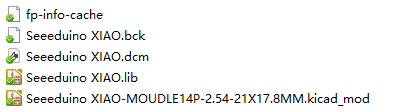
It included these files in the Zip files:
Import the Symbol library to Kicad
- Open your Kicad Project
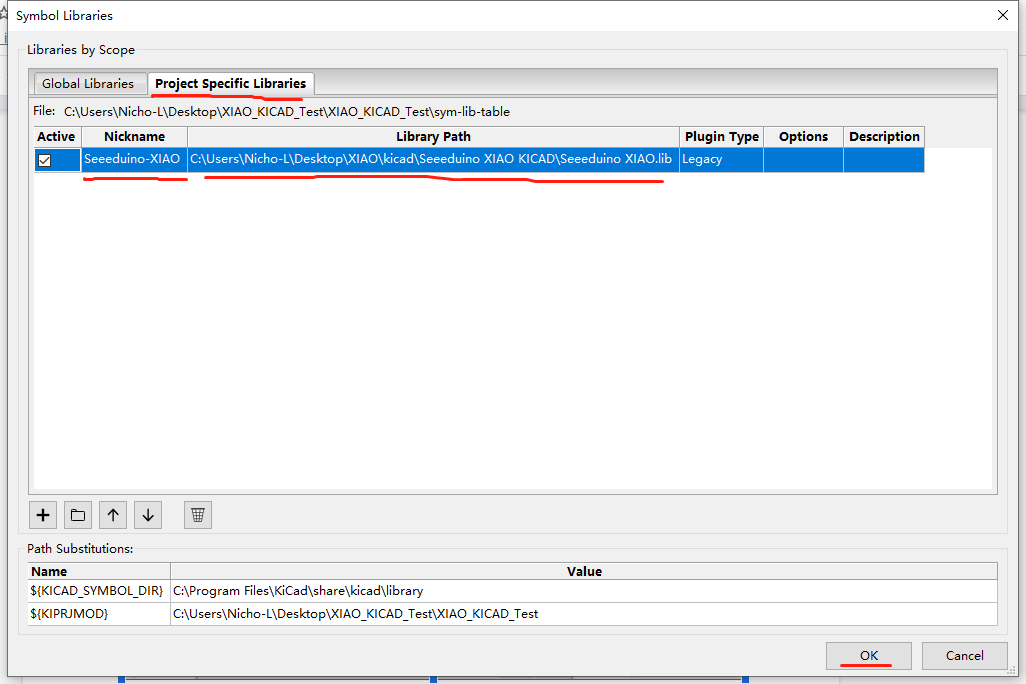
- Go to Preference —> Manage Symbol Libraries

- Switch to “Project Specific Libraries” Tab

- Click the “+” button below
- Configure the Nick Name and the Library Path (choosing the Library you download from the wiki, called: …\Seeeduino XIAO KICAD\Seeeduino XIAO.lib)
- Then hit OK
Import the Footprint library to Kicad
- Go to Preference —> Manage Footprint Libraries

- Switch to “Project Specific Libraries” Tab
- Click the “+” button below
- Configure the Nick Name and the Library Path (choosing the folder of the XIAO libraries, called: …\Seeeduino XIAO KICAD\)
- Then hit OK

Add Seeeduino XIAO in Eeschema
- Open the *.sch files of your projects
- Hit the shortcut “A” of clicking the “placing Symbol” button
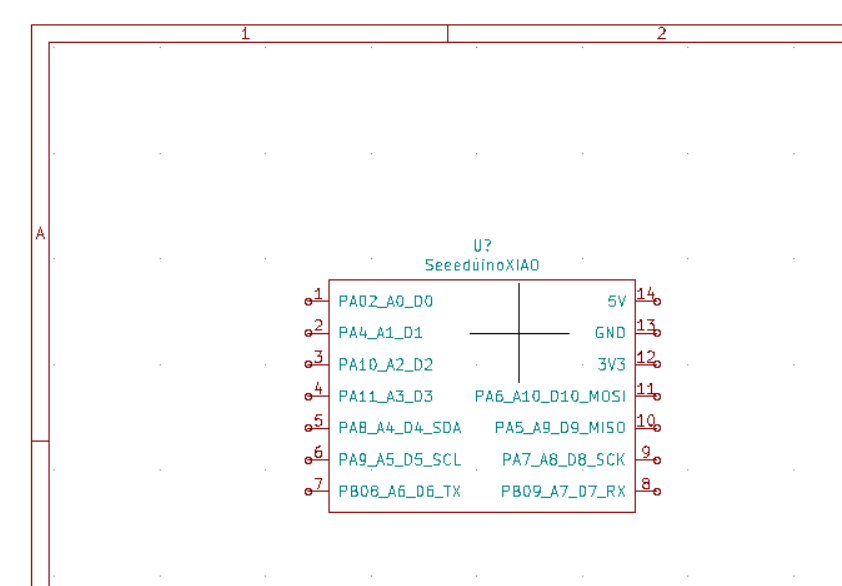
- Type “XIAO” in the search bar, then XIAO appeared
- Hit OK to place XIAO in schematic

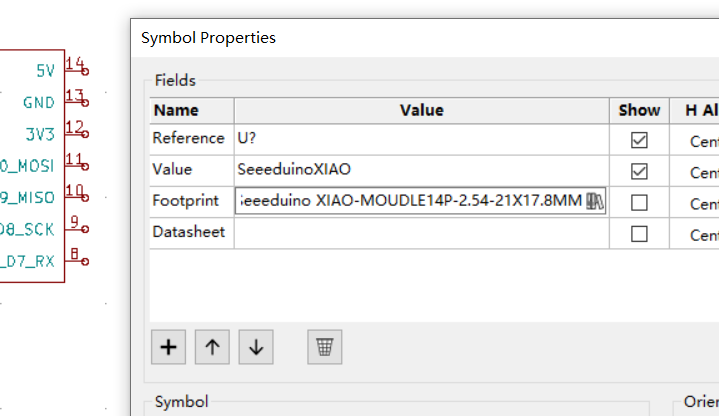
- Double click the XIAO symbol
- Add footprint to XIAO’s symbol

- You can find the XIAO footprint in the Footprint Browser
- Double click to confirm

- Finished adding footprint to XIAO’s symbol
Update PCB from Schematic
- Do some design

- Hit the Pcbnew button

- Hit the update button

- Hit Update

- Continue your PCB design


New Launched: XIAO ESP32-C5 👇

About Author
