ESP-IDF Refresh and Low Power
The first two guides covered page development, peripheral integration, and input event handling. This guide continues with the same Comprehensive Development Demo (Sticky_dashboard_demo) and covers two key e-paper capabilities: choosing a refresh method for the current image and entering a low-power state while keeping the screen content visible.
This guide covers:
- Distinguish between four-level grayscale full refresh, monochrome full refresh, and monochrome partial refresh
- Update the status bar time on monochrome pages with an RTC minute event
- Design an on-demand refresh strategy based on content changes
- Use the AI button to enter Deep Sleep and wake the device again
- Restore the page state that was active before sleep
Before you begin, complete ESP-IDF Development Basics and ESP-IDF Pages and Peripherals. Confirm that the Demo can switch pages, read the RTC time, and respond to the AI button.
Refresh Methods
E-paper can retain an image after power is removed, making it well suited to low-frequency updates and information that stays visible over long periods. To make use of this characteristic, applications usually refresh only when content changes and select a refresh method based on the image.
The Demo provides three refresh APIs:
| Refresh method | API | Scenario in the Demo |
|---|---|---|
| Four-level grayscale full refresh | sticky_display_refresh() | Display Home, return to Home, or short-press AI on Home |
| Monochrome full refresh | sticky_display_refresh_monochrome() | Display or refresh Sensor, Battery, Note, IMU, Microphone, and Deep Sleep pages |
| Monochrome partial refresh | sticky_display_refresh_partial() | Update the status bar time every minute on non-Home pages |
Four-level grayscale full refresh
Home is the only page in the Demo that uses four-level grayscale. It demonstrates black, dark gray, light gray, and white. The App layer uses one interface to select the refresh method for the current page:
bool page_uses_gray4(PageId page)
{
    return page == PageId::Home;
}

esp_err_t refresh_current_page(const AppState &state)
{
    return page_uses_gray4(state.current_page)
               ? sticky_display_refresh()
               : sticky_display_refresh_monochrome();
}
After rendering, page changes, short-press AI refreshes, and IMU page updates all call refresh_current_page(). When Home is active, sticky_display_refresh() reads the complete Canvas, applies the required 180° rotation, and refreshes the entire screen in four-level grayscale mode.
Monochrome full refresh
The Sensor, Battery, Note, IMU, and Microphone pages use only black and white, so refresh_current_page() selects a monochrome full refresh for them. The Deep Sleep page is also monochrome and directly calls the same refresh mode before sleep:
sleep_page_render(canvas);
ESP_RETURN_ON_ERROR(
    sticky_display_refresh_monochrome(),
    "app", "refresh deep sleep page");
This API converts Canvas to a monochrome image and updates the entire screen with the monochrome full-refresh mode. It is intended for pages that contain only GrayLevel::Black and GrayLevel::White. Home uses the four-level grayscale full refresh instead.
Monochrome partial refresh
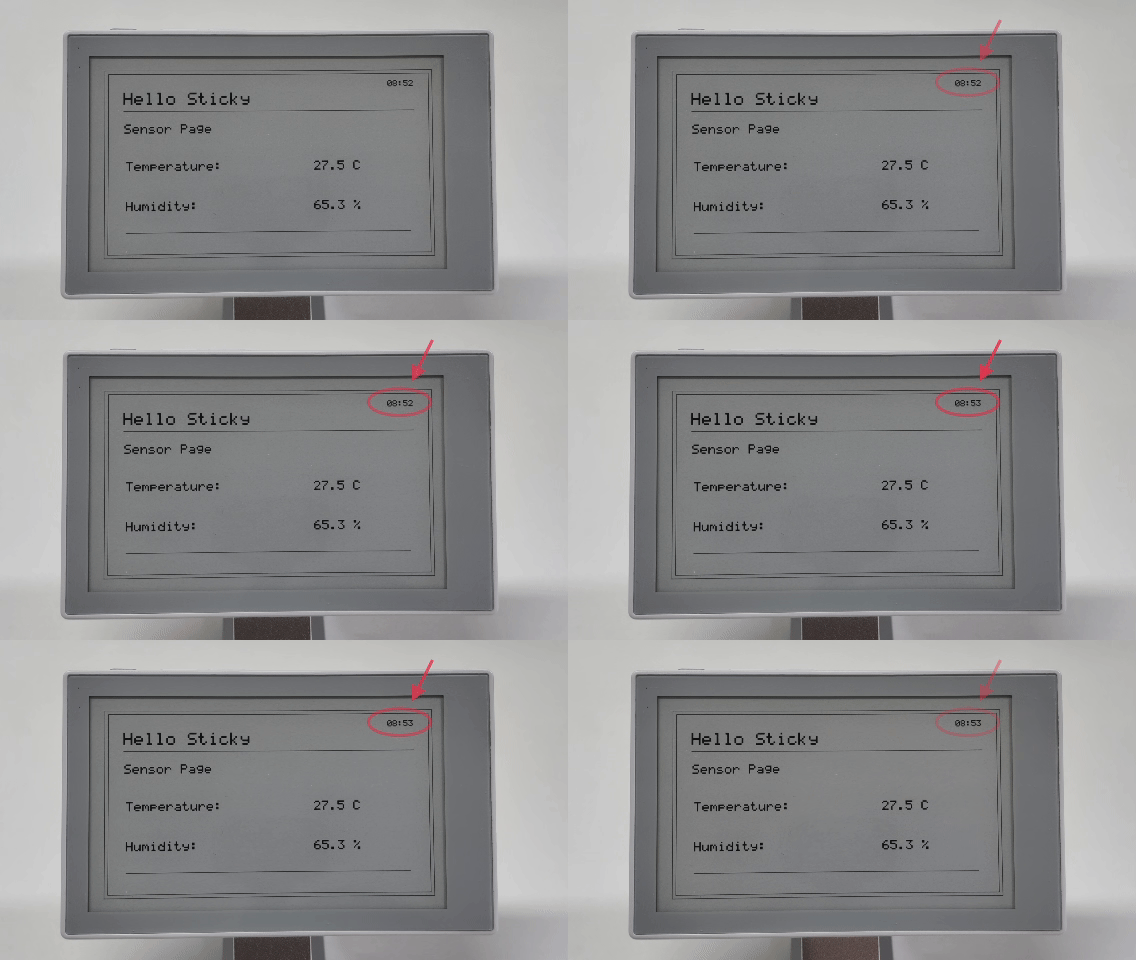
The RTC time changes only once per minute and occupies a small area of the status bar. Sensor, Battery, Note, IMU, and Microphone display this time. When the minute changes, the Demo updates only the time area and then calls:
sticky_display_refresh_partial();
Home does not display the status bar time and does not perform RTC partial refreshes. This keeps the Home grayscale demonstration unchanged while the other pages continue to use efficient minute updates.
Partial refresh is suitable for small monochrome content updates. For complete page changes, large content updates, or four-level grayscale images, use the full-refresh mode assigned to the page.
When choosing a refresh method, first check whether the image needs grayscale, whether the changed area is small enough, and whether the changed content is pure black and white. The Demo uses partial refresh only for the status bar time on monochrome pages. Other updates use the full-refresh mode assigned to the current page.
Partial RTC Time Refresh
The RTC time update on non-Home pages connects the RTC, AppState, AppEvent, Canvas, and Display introduced in the first two guides:
RTC minute changes
    -> app_clock posts ClockMinuteTick
    -> App layer reads the RTC again
    -> Update AppState.date_time
    -> Redraw the status bar time area
    -> Perform a monochrome partial refresh
The related code is located in:
main/app/app_clock.cpp
main/app/app.cpp
main/app/app_data.cpp
main/ui/status_bar.cpp
main/devices/sticky_display.cpp
RTC minute timer
After the first page is displayed, app_main() starts the minute timer with the RTC seconds value that was just read:
ESP_ERROR_CHECK(
    app_clock_start(state.date_time.valid ? state.date_time.second : -1));
app_clock_start() uses the current seconds value to calculate the time remaining until the next minute. If the RTC data is valid, it also adds a 250 ms margin after the minute boundary before posting the first event. Later events occur every 60 seconds.
The timer callback does not access the RTC or screen directly. It only places ClockMinuteTick in the application event queue:
void minute_timer_callback(void *)
{
    if (!app_event_post(AppEvent::ClockMinuteTick)) {
        ESP_LOGW(kTag, "Clock minute event queue is full");
    }

    const esp_err_t result =
        esp_timer_start_once(s_minute_timer, kMinutePeriodUs);
    if (result != ESP_OK) {
        ESP_LOGE(kTag, "Restart minute timer failed: %s",
                 esp_err_to_name(result));
    }
}
This keeps RTC reads, Canvas rendering, and e-paper refreshes in sequence in the main event loop, instead of modifying application state at the same time as button or touch events.
Time change detection
After receiving ClockMinuteTick, the App layer saves the previous time and reads the physical RTC again. It continues to redraw only if the validity state, hour, or minute changed:
if (event == AppEvent::ClockMinuteTick) {
    const bool previous_valid = state.date_time.valid;
    const int previous_hour = state.date_time.hour;
    const int previous_minute = state.date_time.minute;

    update_date_time(state);
    const bool time_changed =
        previous_valid != state.date_time.valid ||
        (state.date_time.valid &&
         (previous_hour != state.date_time.hour ||
          previous_minute != state.date_time.minute));
    if (!time_changed) {
        return ESP_OK;
    }

    if (page_uses_gray4(state.current_page)) {
        ESP_LOGI(kTag, "Skipping RTC partial refresh on gray4 Home Page");
        return ESP_OK;
    }

    status_bar_render_time(canvas, state);
    ESP_LOGI(kTag, "Partially refreshing RTC time");
    return sticky_display_refresh_partial();
}
This prevents an e-paper refresh when the RTC data has not changed. On Home, AppState.date_time is still updated, but Canvas is not changed and no partial refresh runs because Home has no status bar time.
Status bar time update
On non-Home pages, status_bar_render_time() first fills the previous time area with white, then draws the new HH:MM value:
canvas.fill_rect(kStatusBarTimeX,
                 kStatusBarTimeY,
                 kStatusBarTimeWidth,
                 kStatusBarTimeHeight,
                 GrayLevel::White);

char time_text[6] = "--:--";
if (state.date_time.valid) {
    std::snprintf(time_text, sizeof(time_text), "%02d:%02d",
                  state.date_time.hour, state.date_time.minute);
}
canvas.draw_text(670, 52, time_text, 2, GrayLevel::Black);
Clearing the previous content first is important. If new characters are drawn directly over the old time, the previous pixels remain in Canvas and the digits may overlap.
Partial-refresh comparison frame
From the page rendering perspective, the Demo changes only the time area on a monochrome page. In the Display layer, the device uses an SSD1677 e-paper controller, and partial refresh requires a complete monochrome image for before-and-after comparison.
Canvas changes only the time area
    -> Display converts the complete Canvas to a monochrome frame
    -> The e-paper controller compares the previous and current images
    -> Identical pixels remain unchanged
    -> Visually, only the time area is updated
For this reason, sticky_display_refresh_partial() submits a complete monochrome comparison frame instead of sending only a small rectangle to the display. The page changes only the required Canvas area; the Display layer handles image rotation, monochrome conversion, and comparison-frame transfer. Home does not enter this partial-refresh path, so its four-level grayscale image remains unchanged.
To keep the image consistent after extended partial-refresh use, the application can perform a full refresh at an appropriate time. In the Demo, short-pressing AI posts RefreshPage and renders the current page again. Home uses a four-level grayscale full refresh, while the other pages use a monochrome full refresh.
Enter Deep Sleep
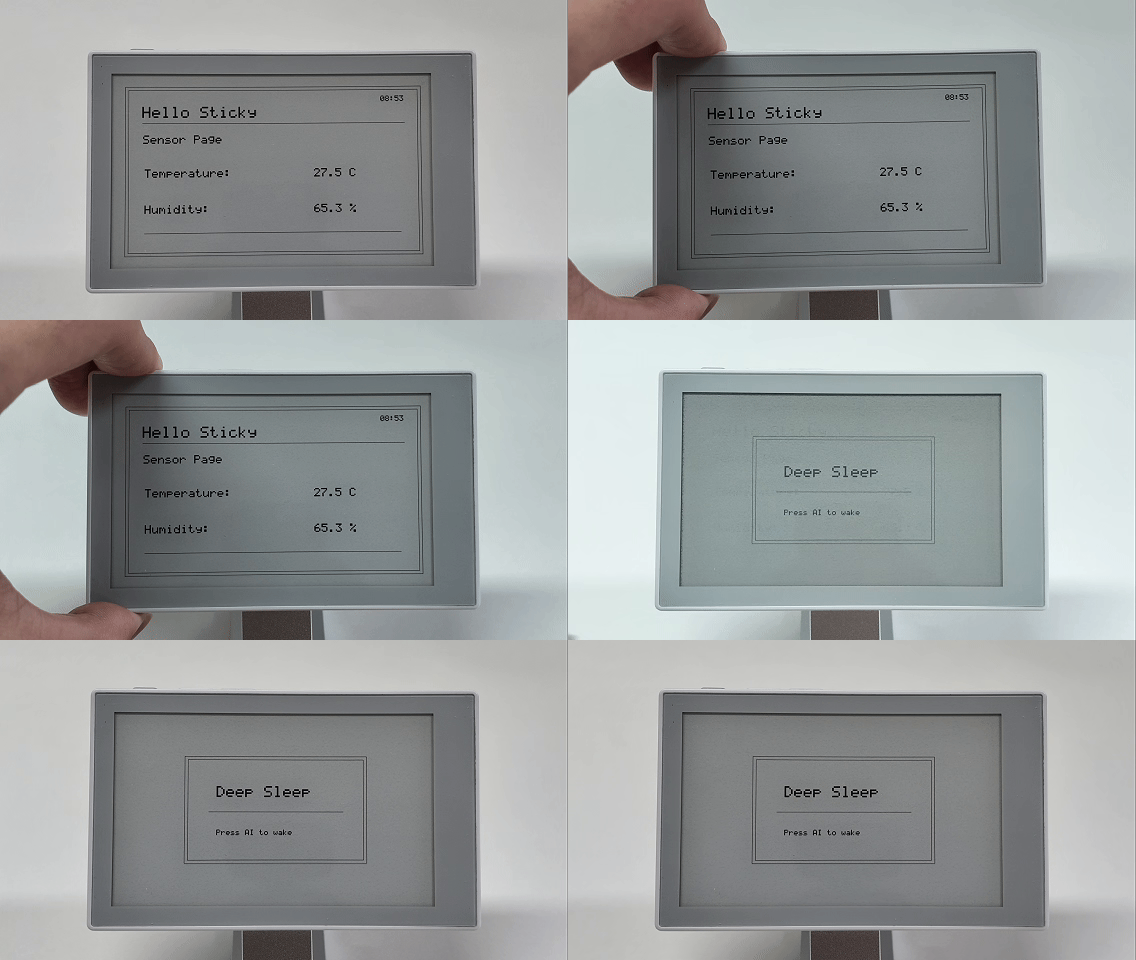
As described in the second guide, holding the AI button for about two seconds posts AppEvent::EnterDeepSleep. The App layer does not call esp_deep_sleep_start() immediately. It first finishes the page and peripheral shutdown sequence:
Hold the AI button
    -> Beep
    -> Save AppState
    -> Render the Deep Sleep page
    -> Perform a monochrome full-screen refresh
    -> Stop Touch polling
    -> Put the e-paper controller to sleep and disable display power
    -> Put the ESP32-S3 into Deep Sleep
The corresponding application code is:
if (event == AppEvent::EnterDeepSleep) {
    ESP_LOGI(kTag, "Preparing for deep sleep");
    const esp_err_t beep_result = sticky_buzzer_beep();
    if (beep_result != ESP_OK) {
        ESP_LOGW(kTag, "Deep-sleep feedback beep failed: %s",
                 esp_err_to_name(beep_result));
    }

    save_app_state_for_deep_sleep(state);
    sleep_page_render(canvas);
    ESP_RETURN_ON_ERROR(
        sticky_display_refresh_monochrome(),
        "app", "refresh deep sleep page");
    ESP_RETURN_ON_ERROR(
        sticky_touch_stop(), "app", "stop touch polling");
    ESP_RETURN_ON_ERROR(
        sticky_display_sleep(), "app", "sleep display");
    sticky_power_enter_deep_sleep();
}
Display the sleep page
main/pages/sleep_page.cpp renders a pure black-and-white page:
void sleep_page_render(Canvas &canvas)
{
    canvas.clear(GrayLevel::White);
    canvas.draw_rect(170, 105, 460, 270, GrayLevel::Black);
    canvas.draw_rect(178, 113, 444, 254, GrayLevel::Black);
    canvas.draw_text(250, 180, "Deep Sleep", 4, GrayLevel::Black);
    canvas.draw_line(230, 245, 570, 245, GrayLevel::Black);
    canvas.draw_text(250, 290, "Press AI to wake", 2, GrayLevel::Black);
}
After the monochrome full refresh completes, sticky_display_sleep() puts the e-paper controller to sleep and disables display power. E-paper can retain the last image without continuous refreshing or power, so the Deep Sleep page remains stable on the screen after the device enters Deep Sleep.
AI button release detection
Before entering Deep Sleep, sticky_power_enter_deep_sleep() waits for the AI button to be released and then allows a short debounce interval:
while (gpio_get_level(static_cast<gpio_num_t>(PIN_POWER_BTN)) == 0) {
    vTaskDelay(kReleasePollInterval);
}
vTaskDelay(kReleaseDebounceTime);
The AI button uses active-low wake-up. If the device enters Deep Sleep before the hold action ends, the button may still be low and wake the device immediately. Waiting for the button to be released prevents the same press from waking the device immediately after it enters Deep Sleep.
The power module then maintains the required system power controls, locks the control pins for the e-paper display, Touch, Microphone, MicroSD, and Buzzer at their disabled levels, and finally puts the ESP32-S3 into Deep Sleep.
Wake from Sleep
The Demo uses GPIO4, connected to the AI button, as the Deep Sleep wake-up source. The button is active low, so the power module uses EXT1 low-level wake-up:
ESP_ERROR_CHECK(esp_sleep_enable_ext1_wakeup_io(
    1ULL << PIN_POWER_BTN, ESP_EXT1_WAKEUP_ANY_LOW));
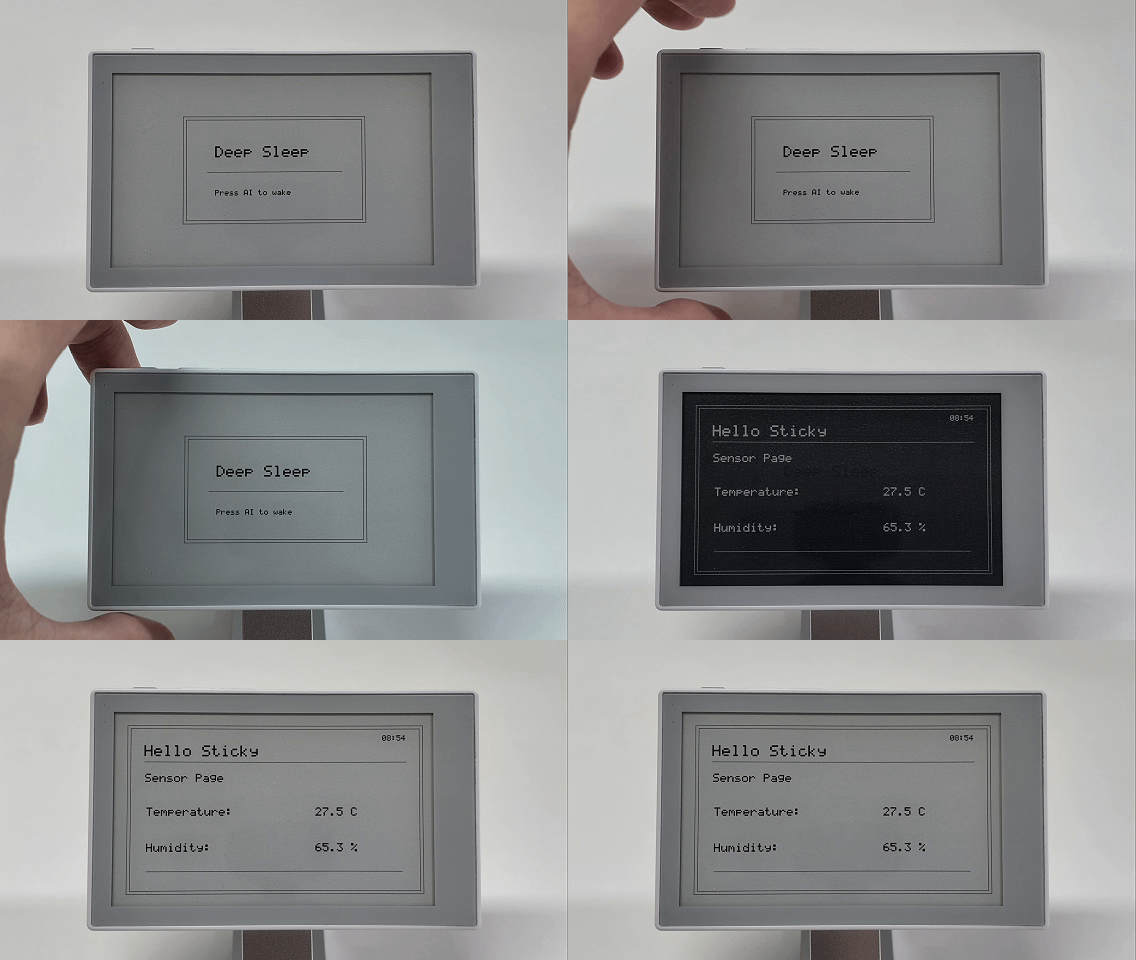
After the AI button is pressed, the ESP32-S3 runs app_main() again. It does not continue after esp_deep_sleep_start(). Board, Display, Touch, and the other Device modules are all initialized again.
Press the AI button
    -> GPIO4 triggers EXT1 wake-up
    -> Enter app_main() again
    -> Initialize Board and each Device module
    -> Restore the AppState saved before sleep
    -> Read the RTC time again
    -> Render the restored page
    -> Select a four-level grayscale or monochrome full refresh for that page
Save state before sleep
The Demo stores AppState in RTC retention memory and uses a Magic value to mark whether the data is valid:
constexpr uint32_t kSavedStateMagic = 0x53544943U;  // "STIC"

RTC_NOINIT_ATTR uint32_t s_saved_state_magic;
RTC_NOINIT_ATTR uint8_t s_saved_state[sizeof(AppState)];

void save_app_state_for_deep_sleep(const AppState &state)
{
    std::memcpy(s_saved_state, &state, sizeof(state));
    s_saved_state_magic = kSavedStateMagic;
}
This memory remains available during Deep Sleep, so it can retain the current PageId and existing page state. Normal power-on or reset is not mistaken for a sleep wake-up because the restore function also checks the wake-up cause.
Restore page state
The Demo restores the saved data only when the wake-up cause is EXT1 and the Magic value is correct:
bool restore_app_state_after_deep_sleep(AppState &state)
{
    if (esp_sleep_get_wakeup_cause() != ESP_SLEEP_WAKEUP_EXT1 ||
        s_saved_state_magic != kSavedStateMagic) {
        return false;
    }

    std::memcpy(&state, s_saved_state, sizeof(state));
    s_saved_state_magic = 0;
    return true;
}
app_main() then reads the physical RTC again before rendering the initial page. show_initial_page() also uses the shared refresh_current_page() interface:
void show_initial_page(Canvas &canvas, const AppState &state)
{
    render_current_page(canvas, state);
    ESP_ERROR_CHECK(refresh_current_page(state));
}

AppState state;
restore_app_state_after_deep_sleep(state);
update_date_time(state);
show_initial_page(*canvas, state);
This restores the page that was visible before sleep and applies its assigned refresh mode: Home uses a four-level grayscale full refresh, while the other pages use a monochrome full refresh. On non-Home pages, the status bar time comes from the RTC read after wake-up rather than the old value saved before sleep.
The Demo copies the complete AppState, which is suitable for the simple state it currently stores. If pointers, dynamically allocated resources, or handles that are valid only during the current boot are added to AppState, save only the data actually needed to restore the page.
Feature Verification
Build and flash Sticky_dashboard_demo again:
idf.py build
idf.py -p PORT flash monitor
Use the following sequence to verify the features covered in this guide:
- Open Home and confirm that it shows four grayscale levels without RTC time.
- Open Sensor, Battery, Note, IMU, or Microphone and confirm that the page is monochrome and displays RTC time.
- Stay on a non-Home page until the next full minute. Watch the status bar time change and find
Partially refreshing RTC timein the serial output. - Short-press AI on Home and another page. Confirm that each page is redrawn with its assigned full-refresh mode.
- Hold AI for about two seconds and release it after the beep.
- Wait for the Deep Sleep page to appear and confirm that the image remains visible after the device enters sleep.
- Press AI again and confirm that the device restarts, restores the previous page, and uses the refresh mode assigned to that page.
After a normal wake-up, the serial output includes messages similar to:
I (...) sticky_power: Woke from deep sleep by AI button
I (...) app: Restored ... Page state after deep sleep
FAQ
-
Colors change after a grayscale page uses partial refresh
Monochrome partial refresh converts the image into a monochrome comparison frame, so it is not suitable for pages containing grayscale content. Use four-level grayscale full refresh for grayscale pages and do not apply monochrome RTC partial refresh to them.
-
Light-gray lines or text disappear on a new monochrome page
Monochrome refresh converts four-level colors to black and white, and light-gray content may become white. Pages that use monochrome refresh should use only
GrayLevel::BlackandGrayLevel::White. -
Slight ghosting appears after repeated partial refreshes
Partial refresh is suitable for small updates such as the time. After repeated partial refreshes, perform a full refresh when appropriate. In the current Demo, short-pressing AI redraws the complete page with its assigned refresh method.
-
Touch errors appear or the device wakes immediately when entering Deep Sleep
Before sleep, stop touch polling, put the e-paper display to sleep, and wait until the AI button is fully released before configuring active-low wake-up. Otherwise, GT911 read errors may appear, or the held button may wake the device immediately.
-
The previous page is not restored after waking from Deep Sleep
The ESP32-S3 runs
app_main()again after wake-up. Save the required page state in RTC retention memory before sleep. After startup, reinitialize the hardware, restoreAppState, and callrefresh_current_page()so the restored page uses its assigned refresh method.
Development Summary
Together, the three guides cover the main Sticky ESP-IDF development paths using the same Demo:
Development basics: Project structure -> AppState -> Page integration

Pages and peripherals: Device -> Data / Events -> Page behavior

Refresh and low power: Refresh methods -> RTC partial refresh -> Deep Sleep -> State restoration
When developing your own application, you can follow the same layered structure: Device modules access hardware, the App layer manages state and events, Page Renderers draw to Canvas, and the Display layer handles image rotation and e-paper refresh.
With this structure, a typical data display feature usually only requires extending the corresponding Device, app_data, AppState, and Page Renderer. The existing display refresh and wake-up flows can be reused, keeping pages, peripherals, and display control separate.