The Ultimate Home Assistant Voice Control Guide (2026): 4 Best Ways to Setup
Setting up voice control for Home Assistant used to mean picking through forum threads and half-finished GitHub projects. That’s changed. There are now four legitimate, well-supported paths to home assistant voice control, and none of them require you to be an expert.
Before picking hardware, it helps to know roughly how Assist, the voice engine built into Home Assistant, works: speech turns into text, Home Assistant figures out what you meant, then acts or replies back. Three swappable steps under the hood.
You do need a Home Assistant instance already running somewhere, a Raspberry Pi, an old mini PC, or a NAS, plus Wi-Fi reaching wherever you put the voice hardware. Everything else builds on that.
This guide breaks down the four practical setups honestly, including where each one falls short, so you can pick what fits your house rather than the one with the flashiest spec sheet.
Native Home Assistant Voice Control: The Privacy-First Local Setup
One of Home Assistant’s biggest strengths is that it allows users to control their smart home without depending on cloud services. Instead of sending every voice command to remote servers, the entire voice pipeline can run directly on your own hardware. This approach not only improves privacy but also reduces latency and ensures your voice assistant keeps working even if your internet connection goes down.
For users searching for home assistant voice control without cloud, this is the most recommended approach.
Software Configuration: Setting Up Your First Local Pipeline
Before you buy any hardware, it helps to know how Home Assistant processes your voice. The system works in three simple steps. First, it turns your speech into text. Then it figures out what you want to do. Finally, it speaks back to you if needed.
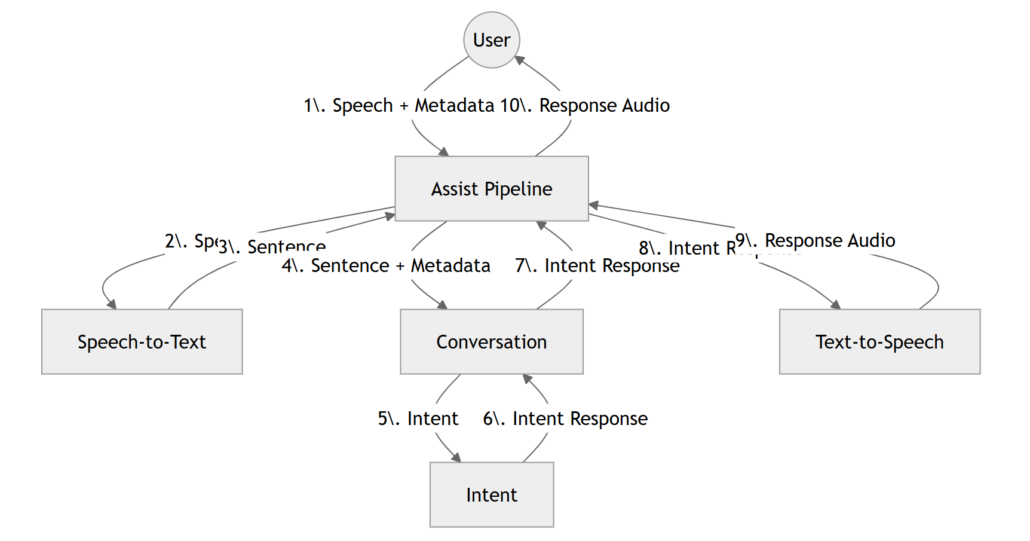
You can run every part of this process locally. Home Assistant gives you choices for speech engines and wake word detectors, so you can pick what works best for your setup.
To get started, you just need:
- a running Home Assistant system
- a microphone
- a speaker
- and a stable network.
Once everything is set up, you can say things like “Turn on the living room lights” or “Set the thermostat to 22 degrees.” Your voice never leaves your home. For people who care about privacy, this is a huge benefit.
Entry-Level Hardware: Using the Official Voice PE for Small Rooms
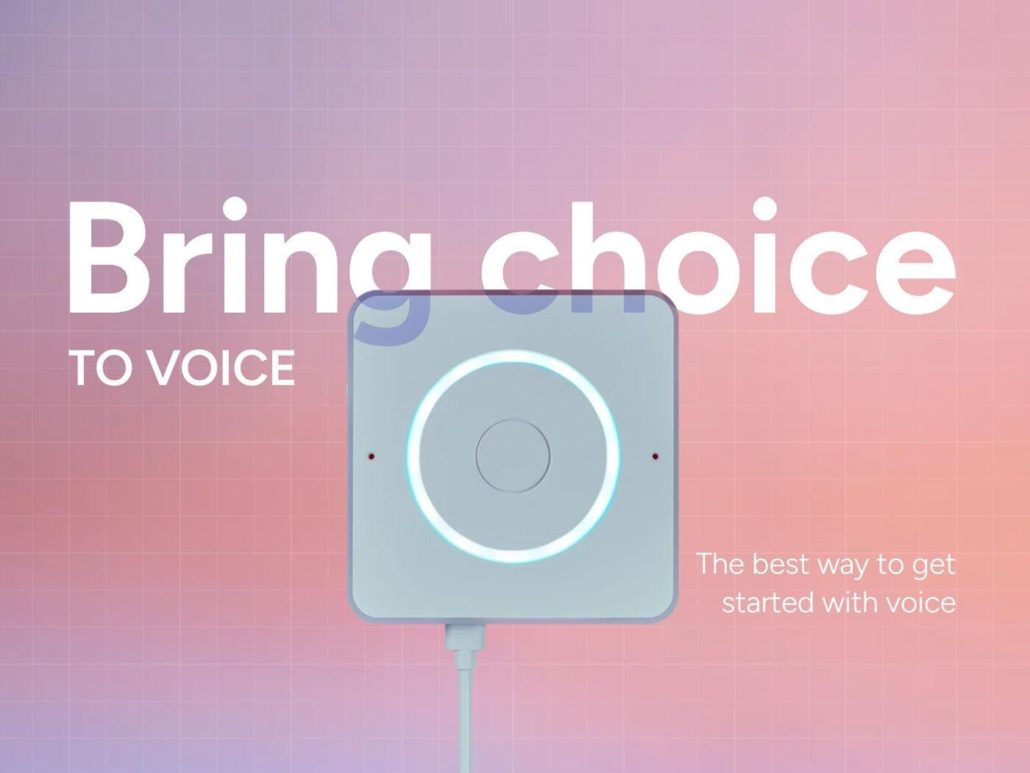
For anyone looking for the easiest way to add voice control to Home Assistant, the Home Assistant Voice Preview Edition is the best place to start. This device was made specifically for Home Assistant Assist. It works right out of the box.
If you would like to see the device in action before buying it, watch the official demonstration below: Introducing the Home Assistant Voice Preview Edition – Voice: Chapter 8
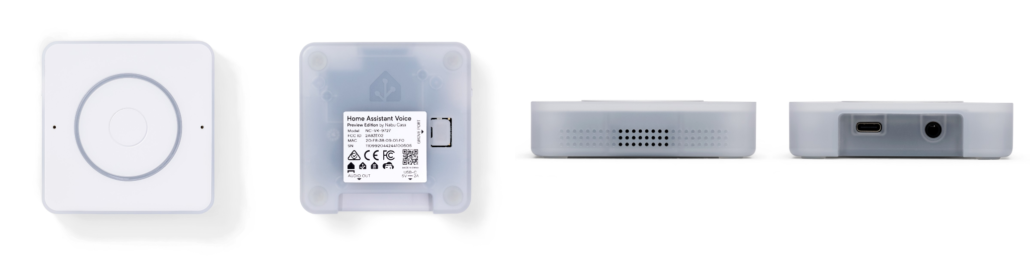
Setup is very simple :
- You plug it in with USB-C
- You go through a short onboarding process
- Finally, you connect it to your Home Assistant instance.
That is all. The device has a built-in microphone, speaker, and a light ring that shows you when it is listening or speaking. You do not need to buy anything else. As an all-in-one home assistant voice control device, it requires almost no technical knowledge to get started.
This is the perfect choice for beginners, privacy focused users, and anyone who wants a simple plug and play voice assistant for a small room.
Distributed Home Assistant Voice Control: Far-Field Satellites for Open Spaces
The official Voice Preview Edition works well in small rooms. But larger spaces like open kitchens, living rooms, or workshops are different. There is more background noise, greater distances between you and the microphone, and echoes from hard surfaces. In these situations, standard microphones often miss your wake word.
The solution is simple. You place multiple voice satellites around your home. Each one connects to the same Home Assistant server. You get faster responses, better voice pickup, and a more natural experience.
Why Far-Field Mic Arrays Outperform Standard Microphones
Not all microphones perform equally well for voice assistants. A standard microphone simply captures every sound around it, making it harder for Home Assistant to distinguish your voice from background noise. That’s usually fine when you’re sitting close to the device, but it becomes much less reliable across a room.
A far-field microphone array takes a different approach. Instead of relying on a single microphone, it combines several microphones with intelligent audio processing to isolate your voice and improve recognition, even when you’re speaking from several feet away.
Some of the technologies that make this possible include:
- Beamforming, which concentrates on your voice while reducing sounds coming from other directions.
- Acoustic Echo Cancellation (AEC), which removes echoes created by the device’s own speaker.
- Noise Suppression, which filters out continuous background sounds such as fans, air conditioners, or kitchen appliances.
- Direction of Arrival (DoA), which estimates where your voice is coming from to improve speech detection.
These features can make a noticeable difference in larger rooms or busy living spaces where background noise is unavoidable.
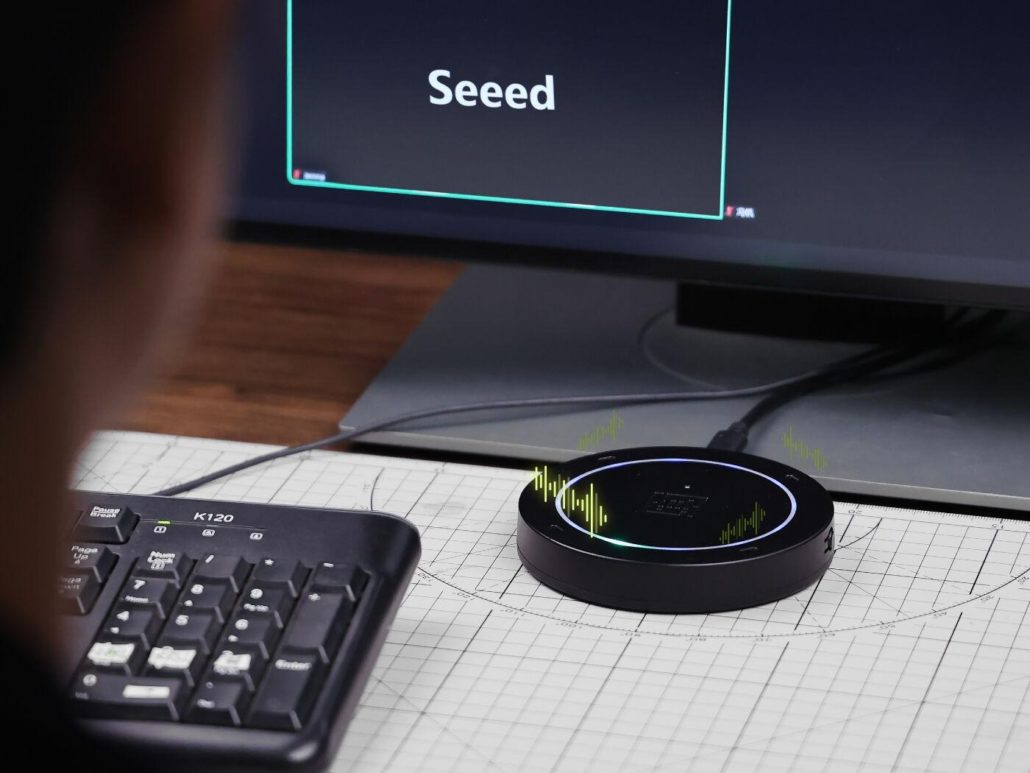
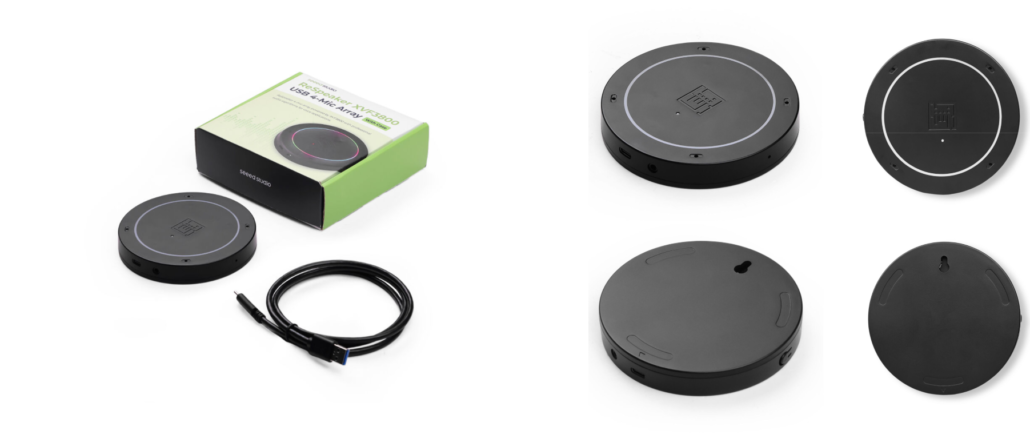
A good example is the reSpeaker XVF3800 USB 4-Microphone Array. Powered by the XMOS XVF-3800 chipset, it combines all of these audio processing capabilities into a compact USB device. It works out of the box with a Raspberry Pi and other Home Assistant-compatible systems, making it a popular choice for DIY voice assistant projects. If you’re building your own Home Assistant voice device, it delivers excellent far-field voice recognition without adding much complexity to the setup.
Deployment Guide: Building Voice Assistant with ESPHome or Pi
Building a DIY voice satellite is much easier today. ESPHome and Home Assistant Assist have done most of the heavy lifting.
A typical setup looks like this:
- You connect the reSpeaker XVF3800 to a Raspberry Pi.
- You enable Assist in Home Assistant.
- You configure the satellite using ESPHome.
- You test wake word detection.
- You place the device in your target room and adjust sensitivity if needed.
For step-by-step instructions, Seeed provides two excellent resources. The Getting Started Guide walks you through the initial setup, while the Smart Home Voice Control guide explains how to flash ESPHome and configure the GPIO connections for Home Assistant.
If you’d like to follow the entire process visually, the video tutorial below demonstrates the complete build, from hardware assembly to ESPHome configuration and Home Assistant integration :
Cloud & Hybrid Bridges: Integrating Alexa and Google Home Setup
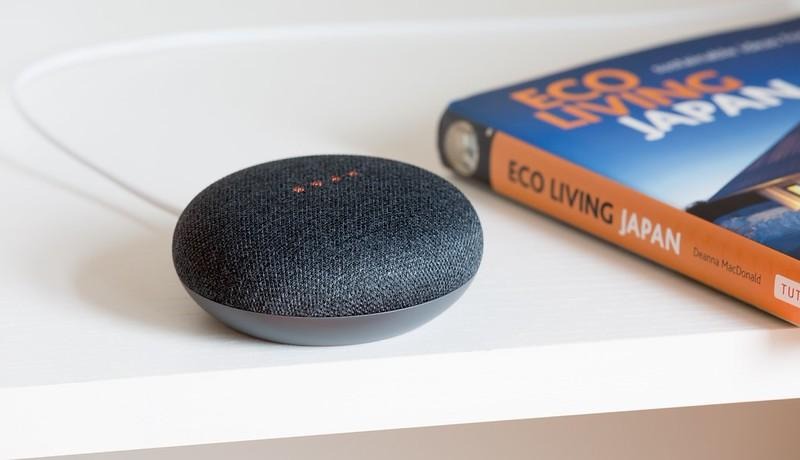
Not everyone wants to replace the smart speakers they already own. If your home already uses Amazon Alexa or Google Home, Home Assistant allows you to integrate these ecosystems instead of starting from scratch.
This hybrid approach combines Home Assistant’s powerful automation engine with the mature voice recognition capabilities of commercial assistants. It is often the lowest-cost way to add home assistant voice control, especially if compatible smart speakers are already installed throughout the house.
Once connected, Alexa or Google Assistant can trigger Home Assistant automations, control lights, locks, thermostats, garage doors, media players, and virtually any supported device.
Although these assistants rely on cloud services for speech recognition, they remain an attractive option for users who prioritize convenience and familiar voice interactions over complete local processing.
Using Nabu Casa for a No-Subscription Echo Alternative
The easiest way to connect Home Assistant with Alexa or Google Home is through Home Assistant Cloud (Nabu Casa).
Instead of manually configuring HTTPS certificates, port forwarding, or cloud APIs, Nabu Casa automates the entire integration process. Devices are securely exposed to Alexa and Google Home with only a few clicks, making it an excellent option for beginners.
Beyond voice integration, Nabu Casa also provides secure remote access to your Home Assistant instance without requiring additional networking knowledge.
Advanced users can still choose the manual configuration route, but it involves significantly more setup and ongoing maintenance. For most households, the official cloud service offers the fastest path to reliable voice control while continuing to support Home Assistant development.
This approach is particularly appealing for users who already own Echo or Google Nest speakers and simply want to extend their existing ecosystem rather than replace it.
If you’d like to see it configured step by step, here’s a popular community walkthrough: THE Home Assistant Alexa Tutorial – Super Powered Alexa
Mobile & Wearable Access: Home Assistant Voice Control On-the-Go
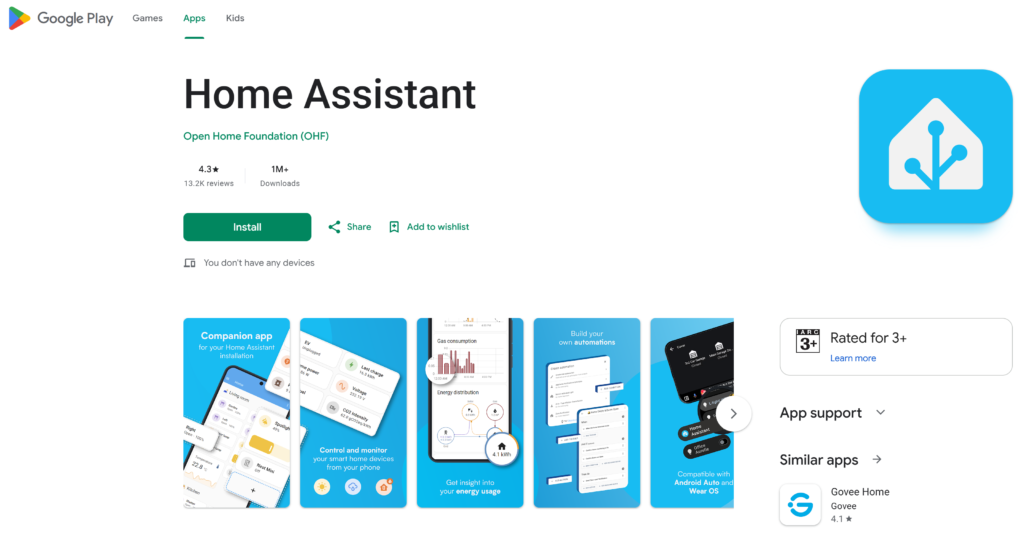
You do not always need dedicated hardware to control your smart home. For many people, the easiest option is the device they already carry in their pocket. The Home Assistant Companion App turns your smartphone or smartwatch into a portable voice assistant. You can control your home from anywhere, whether you are sitting on the couch or miles away.
This is especially useful for Android users, since the app offers deep integration with Assist, widgets, notifications, and automation triggers.
Configuring the Assist Feature on Smartphones and Smartwatches
Setting up home assistant voice control android is really easy.
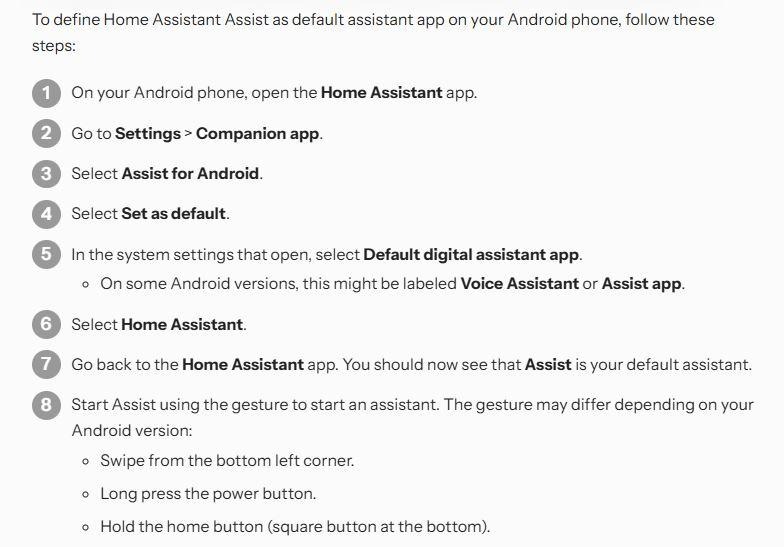
Once you have installed the Home Assistant Companion App, you can just log in and turn on Assist. You can then speak commands directly from your phone.
On Android, you can add shortcuts to your home screen or quick settings. You can also get notifications that let you respond without opening the app.
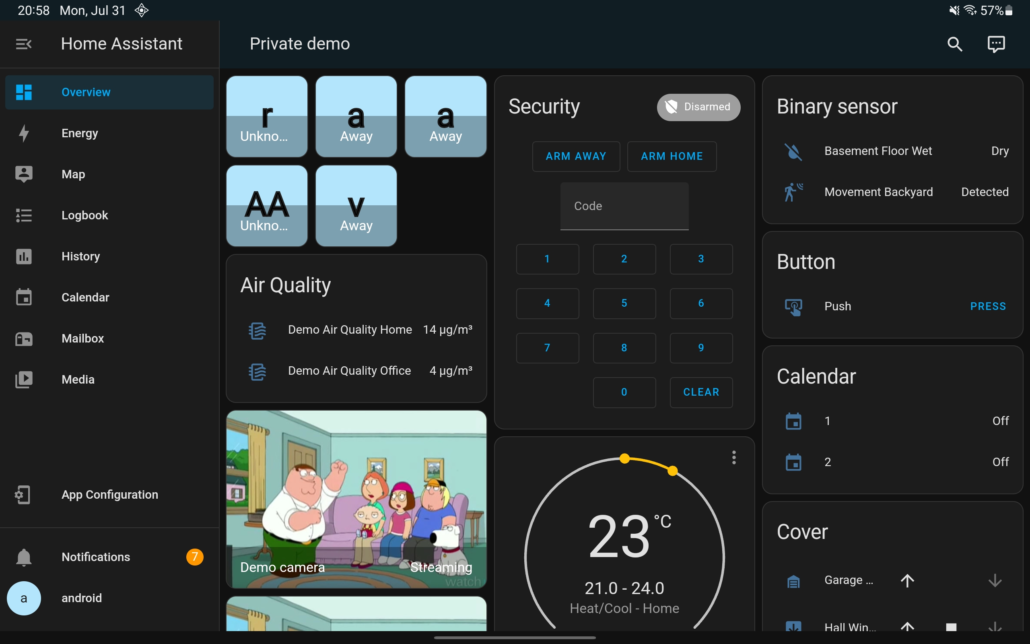
Wearables are handy too. With Wear OS or Apple Watch, you can run commands from your wrist. When your hands are full, a quick word is much faster than reaching for your phone.
Remote access is a big plus. With Nabu Casa or a VPN, your commands work even when you are away. You can check if you left the garage open, turn off forgotten lights, or warm up the house before you get back.
Keep in mind : your phone won’t replace fixed hardware in every room. But it is a great backup, and it costs nothing extra.
Use Cases: When to Use Mobile vs. Fixed Voice Hardware
Different situations call for different tools.
| Scénario | Best fit | Why |
| Hands-free control at home | Fixed hardware (Voice PE / reSpeaker XVF3800) | Always listening, nothing to reach for |
| Command while driving or away | Companion app | Works over secure remote access |
| Quick command, phone not in hand | Wear OS / Apple Watch | Tap-to-talk on the wrist |
| Large, noisy open-plan room | reSpeaker XVF3800 satellite | Far-field pickup handles the noise |
This is what many Home Assistant users actually do. They pick the right tool for each room and each moment. The result is a voice system that works everywhere, without being tied to one device.
Which Home Assistant Voice Control Method Is Right for You?
If you want the best home assistant voice control method, the right choice comes down to three things. How big is your home? How much do you care about privacy? And how much work are you willing to put in?
The Voice Preview Edition is the easiest option. It works out of the box and keeps everything local. For anyone looking for home assistant voice control without cloud, this local-first approach remains the best balance between privacy, speed, and reliability.
If you have a larger or noisier space, the reSpeaker XVF3800 with distributed satellites gives you better pickup. If you already have Alexa or Google devices, you can connect them to Home Assistant without buying anything new. And the Companion App means you always have voice control on your phone, wherever you are.
These four options are not really competitors. They work together. Most people end up mixing them. A Voice Preview Edition in the bedroom. A satellite in the kitchen. The app on their phone for when they are out.
The goal is simple. You want a voice system that works reliably, respects your privacy, and fits the way you actually live. Home Assistant lets you build exactly that.
| Method | Best For | Setup Difficulty |
| Native Home Assistant Voice Preview Edition | Most Home Assistant users, beginners, privacy-focused homes | Easy (plug and play ) |
| DIY Microphone Array (reSpeaker XVF3800) | Large rooms, DIY enthusiasts, advanced users | Moderate (some tinkering required ) |
| Alexa / Google Home Integration | Existing Alexa or Google Home users | Very easy |
| Mobile & Wearable Voice Control | Users who want control anywhere | Easy |
FAQs
- Can a Home Assistant be controlled by voice?
Yes. Home Assistant has a built-in feature called Assist that lets you control devices with your voice. You can use official hardware, DIY satellites, or the mobile app. Everything can run locally without sending data to the cloud.
- Do I need an internet connection for Home Assistant voice control?
No. If you use Home Assistant Assist with a local speech pipeline, your voice commands can be processed entirely on your own hardware.
- Which voice assistant is best for Home Assistant?
It depends on your space and needs. The Voice Preview Edition is great for small rooms. The reSpeaker XVF3800 works better in large or noisy areas. The Companion App is perfect for on-the-go use. You can also integrate Alexa or Google.
- Which Home Assistant voice hardware is best for beginners?
The Home Assistant Voice Preview Edition is the easiest option. It works out of the box and requires almost no technical setup.
- Can I use more than one voice assistant device at home?
Yes. Many users combine multiple voice satellites, phones, and smart speakers so voice control works naturally in every room.
- What are the limitations of voice control?
Voice control works well for basic tasks like turning lights on and off. Complex commands or conversations are still tricky. Background noise can interfere with wake word detection. And you need a decent microphone setup for larger rooms.
- How to set up voice commands on Home Assistant?
Enable the Assist integration in your settings. Connect a microphone and speaker. Choose your preferred speech to text and text to speech engines. Then start speaking. The official documentation and community guides walk you through the whole process.
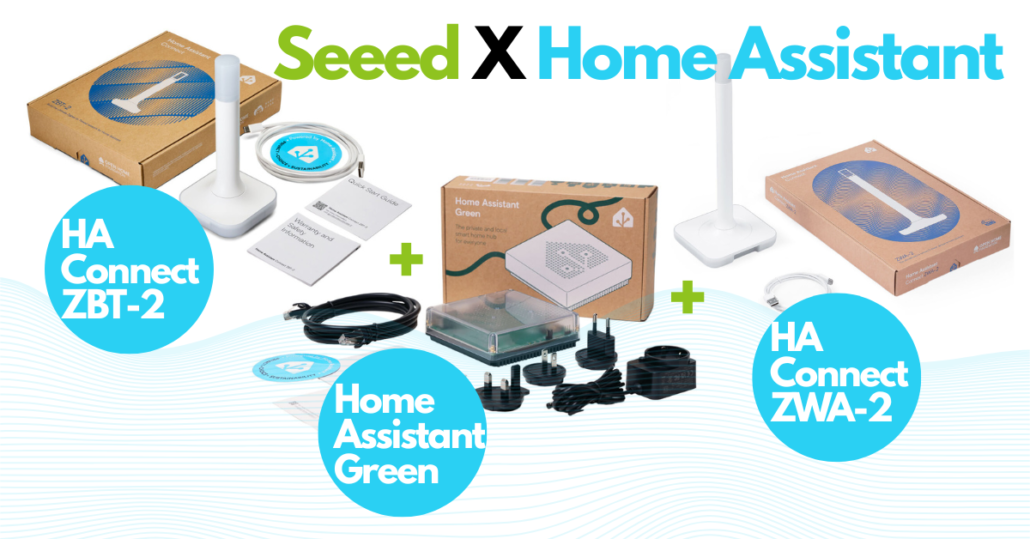
As a proud partner of Nabu Casa, Seeed Studio is an official global distributor of Home Assistant hardware (Host, Accessory, and Control), shipping to 100+ countries. Complementing the official gear, we offer an extensive ecosystem of self-developed HA-compatible solutions—from industrial devices to DIY kits—with seamless MQTT and ESPHome integrations. From local servers to E Ink dashboards, Seeed provides the definitive hardware foundation to bring your Home Assistant vision to life.
>> Read more
About Author
